
A graphics card at 80 °C in a game is not necessarily running hot. What counts is your card's own published maximum, and whether the temperature has crept up over the years. NVIDIA blames dust for that creep, and repair guides on iFixit blame dried thermal paste. The paste sits under the cooler, and that is where a gaming PC cleaning with a GPU teardown begins.
This guide is for desktop graphics cards, NVIDIA GeForce and AMD Radeon. If it is a Windows laptop that runs hot, read Laptop overheating and the fan is loud? instead. On a Mac, see MacBook overheating and fan noise.
Normal is anything up to your card's own maximum: NVIDIA lists 85–93 °C for the GeForce RTX cards below and says cards typically run at 40–90 °C. A hotspot or junction reading is the hottest point on the chip, so it reads higher than the average. Check it in a game with the AMD Software overlay (Ctrl+Shift+O) or the NVIDIA app (Alt+Z, Statistics). Dust, airflow and fan or power settings are home fixes; dried paste needs the cooler off, and a card still under warranty shouldn't be opened at home. Artefacts or no picture mean board-level repair, which we don't do.
What GPU temperature is normal
On the GeForce cards below, normal is anything up to 85–93 °C, depending on the model. NVIDIA says its GPUs are designed to run reliably up to their maximum specified operating temperature. That figure varies by GPU and is listed on each card's page at nvidia.com, in a row called Maximum GPU Temperature. NVIDIA's support pages also say graphics cards typically run between 40 °C and 90 °C, and that performance cards get hot under heavy load.
These are the maximums NVIDIA publishes for a few GeForce cards:
| GeForce card | Maximum GPU temperature |
|---|---|
| RTX 3060 / RTX 3060 Ti | 93 °C |
| RTX 4070 family | 90 °C |
| RTX 5070 Ti | 88 °C |
| RTX 5070 | 85 °C |
| RTX 5090 | 90 °C |
NVIDIA also says what happens at the limit. When a GPU reaches its maximum, the driver throttles performance to bring the temperature back under it. If the temperature keeps rising anyway, the GPU shuts the system down to protect the card. So a GeForce card at its limit first loses frame rate, and only then switches the PC off.
Hotspot and junction temperature
The hotspot or junction temperature is the hottest point on the GPU chip, so it reads higher than the GPU temperature, which is an average.
AMD explained it in a 2019 post about the Radeon RX 5700 series. Older GPUs read their core temperature from a single sensor near the old thermal diode. The RX 5700 cards have many sensors across the chip. They keep raising their clocks until any one of them reaches the hotspot, or junction, temperature of 110 °C. AMD wrote that running at up to 110 °C junction during typical gaming “is expected and within spec” for those cards.
Two limits on that number. AMD said it in 2019, about the RX 5700 series — not as a rule for every Radeon since. And a card at its limit can still be faulty. In January 2023 AMD told Tom's Hardware it believed unexpected throttling on a limited number of reference RX 7900 XTX cards related to the cooler of its reference design. It asked affected owners to contact AMD Support.
How to check your GPU temperature
Check the temperature in a game, not at the desktop. Both AMD and NVIDIA ship an in-game overlay that shows temperatures next to the frame rate.
- —AMD Radeon. AMD Software: Adrenalin Edition reports the GPU temperature, the GPU junction temperature and the fan speed in RPM. In a game, Ctrl+Shift+O toggles the performance overlay and Ctrl+Shift+L logs the readings to a file, as AMD's monitoring guide describes. The hotspot reading appears only on the Radeon VII, the RX 5000 series and newer.
- —NVIDIA GeForce. In the NVIDIA app, press Alt+Z and open Statistics at the bottom of the sidebar. There you set up an in-game overlay with frame rate, GPU utilisation, system temperatures and more. Alt+R switches it on and off.
Play the game that worries you and compare where the temperature settles with your card's maximum. A card sitting at its maximum while the frame rate sags is doing what NVIDIA describes: throttling to stay under its limit. Keep the log, so the same game a few months later shows whether the card is getting worse.
On a Radeon, fans that stand still at the desktop are normal. AMD's Zero RPM feature is on by default: it keeps the fans stopped under light load and spins them up as load and temperature rise.
Why a graphics card runs hotter over the years
An older card can run hotter because its cooler moves heat less well than when it was new. Dust collects on the fans, and the thermal paste between the chip and the heatsink can dry out.
Dust first. NVIDIA says a card's fans collect dust over time, which limits how well they cool the GPU. It compares dust to a warm blanket that keeps heat in. An overheating PC, in NVIDIA's words, will freeze, reboot or simply crash.
Then the paste. A thin layer of thermal paste fills the gap between the GPU chip and the heatsink. Repair guides on iFixit say it can dry out over time and lose its ability to transfer heat, which can lead to overheating and lower performance.
Thermal pads carry heat from the memory chips (VRAM) into the heatsink. They aren't one size: iFixit's guide for a Gigabyte RTX 2070 Super uses 0.5 mm pads on the VRAM and 1.0 mm pads along the heatsink. Pads have to match the card model.
What you can do yourself
Start with what the manufacturers tell owners to do: clear the dust, give the case airflow, then limit power or fan behaviour in the driver software.
- —Clear the dust. AMD's checklist for crashes and overheating says to check that the CPU, graphics card, power supply and case cooling all work, clear dust and tidy loose cables. NVIDIA suggests looking inside the PC and, if it is covered in dust, carefully blowing it off with compressed air.
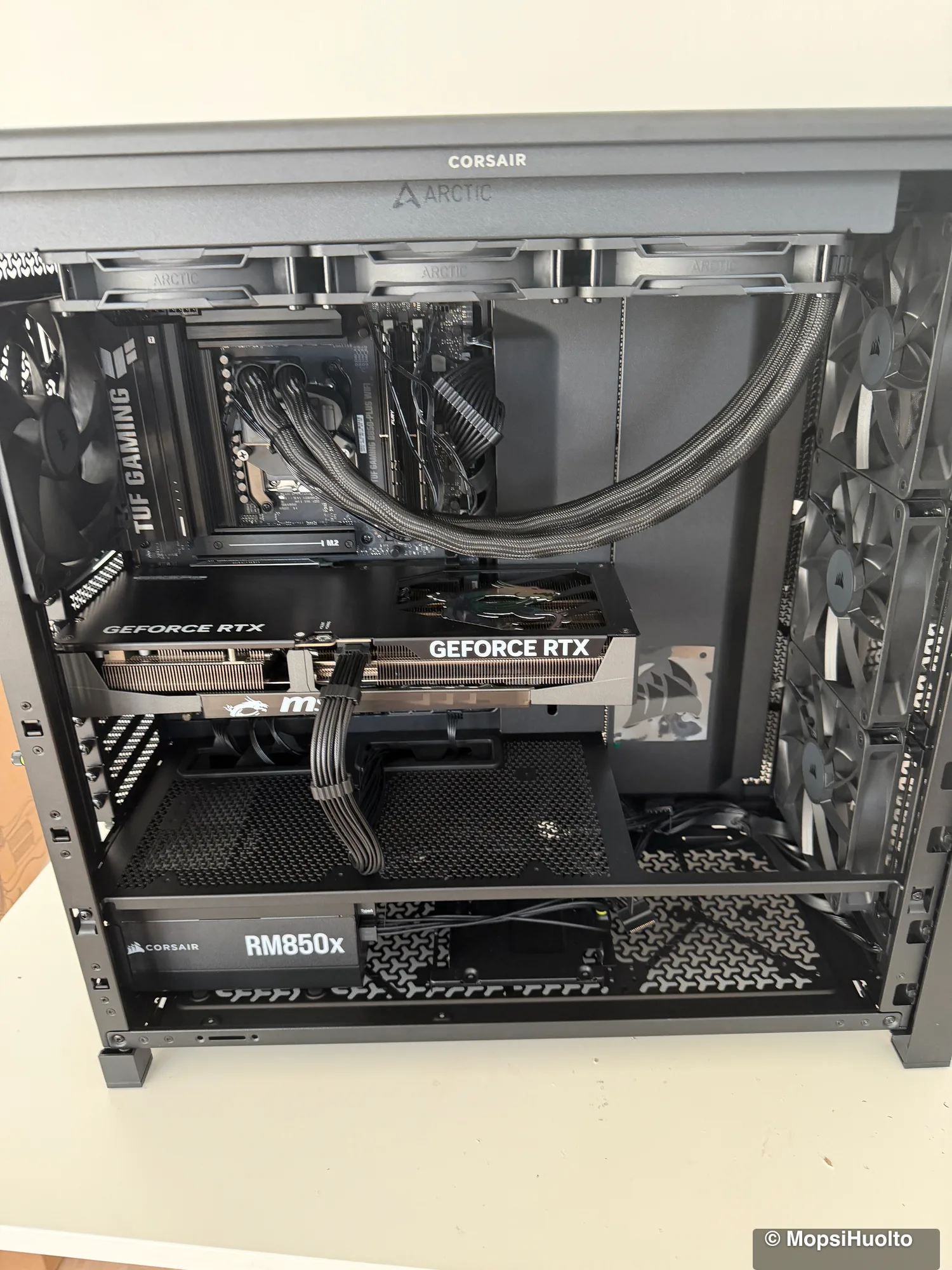
- —Let the case breathe. NVIDIA says a case without proper airflow keeps the card's heat from escaping. Fans pulling cool air in at the front and hot air out at the back help, and for a card that hits its maximum NVIDIA's advice is an added system fan. One build we balanced for slight positive pressure shows what that looks like in practice.
- —Radeon: undervolt or go quiet. On supported cards, AMD Software's tuning page offers an Undervolt GPU preset that lowers voltage while keeping clock speeds. There is also a Quiet preset, a custom fan curve and a Power Limit slider. AMD's terms on that page exclude damage from running outside its specifications from any AMD warranty.
- —GeForce: set a target. In the NVIDIA app you can set voltage, power, temperature and fan-speed targets — for example to stay under a chosen temperature, or to cap the fans at 70 %.
- —A fan louder than when new. NVIDIA suggests lowering the graphics and memory clocks to keep the card from overheating.
What not to do at home is take the cooler off a card that is still under warranty. ASUS's US graphics card warranty runs 36 months and tells owners not to remove the thermal module, because reassembling it can cause bad contact and damage components. Other brands and regions word their terms differently, so read your own card's warranty before anyone opens it.
Heat problem or a faulty card?
Crashes, freezes and reboots can be heat or one of several other faults; your temperature log shows which to chase first. Artefacts and no picture are not a cooling job: they need board-level repair, which MopsiHuolto doesn't do, so the GPU cleaning service below isn't the fix for them.
AMD's stability checklist lists random reboots, crashes, hangs and blue screens as possible results of an outdated BIOS, an unsupported memory setup, unstable overclocking and overheating, outdated drivers, conflicting software or faulty hardware. NVIDIA's troubleshooting steps for the same symptoms start with software — the game patch, overclock settings and the display driver — and only then turn to dust inside the PC.
A crash or shutdown with the GPU at its maximum points at cooling — that is how NVIDIA says an overheating PC behaves. A crash with the card well under its limit points first at the other causes on AMD's list. To test the card itself, AMD suggests reseating it, or a swap test with a known working GPU or system.
Artefacts look like coloured blocks, lines or flickering shapes in games; no picture counts once the driver is ruled out. If the card is still under warranty, go to the seller or the maker. If it has to be replaced, see PC building and upgrades.
When new paste and pads are the fix
Say the case is clean, the airflow is sorted and nothing is overclocked, yet the card still sits at its maximum and throttles in games. Then the next suspect is under the cooler — the paste and pads — and only a teardown reaches them.
MopsiHuolto's gaming PC cleaning has a tier for exactly this. It includes the full basic clean: case, fans, CPU cooler and GPU heatsink cleaned, and fresh paste on the CPU. On top of that comes the GPU teardown — the cooler comes off the card, the die gets fresh paste, and the VRAM and VRM thermal pads are replaced. It is done on-site in Helsinki, Espoo, Vantaa and Kerava. Travel inside Kehä III is included; beyond the ring it adds €0.50/km. The GPU tier takes about two hours, faults in the work are fixed free, and diagnostics are free.
Card still at its limit after the dust and airflow checks? GPU teardown, fresh paste on the die and new VRAM/VRM pads, with the full PC clean — €179.
See the GPU service →FAQ
Is 80 °C too hot for a GPU?+
Not for the NVIDIA cards in the table above: 80 °C is under every published maximum there. For any other card, compare against the maximum on its own spec page.
Is a GPU hotspot over 100 °C safe?+
For the Radeon RX 5700 series, AMD said in 2019 that up to 110 °C junction during typical gaming is expected and within spec. For other cards we know of no published hotspot limit, so compare the main GPU temperature with your card's maximum.
How often should GPU thermal paste be replaced?+
Neither NVIDIA nor AMD gives one in the support pages quoted here. Go by the readings: if the same game runs hotter than it used to and cleaning the dust didn't help, the paste and pads under the cooler are the next thing to check.
Certified laptop and console repair technician. Twenty years on the bench in Helsinki — tearing down PS5s, MacBooks, and gaming PCs and writing down what we learn.
+358 45 196 9558 →