A laptop that runs hot with the fan roaring is, most of the time, a laptop that can't get its heat out. Dust packs the fan and the heatsink fins, the thermal paste on the processor dries out, or the vents are sitting on a duvet. Some of that you can check at home in ten minutes. The rest needs the bottom panel off — that is what a Windows laptop cleaning with fresh thermal paste is for.
This guide is for Windows laptops — Lenovo, HP, Dell, ASUS, Acer, MSI and the rest. If you have a Mac, read MacBook overheating and fan noise instead: the causes are similar, the tools are not.
A fan that speeds up under load and settles when you stop is normal. One that roars at an empty desktop, or has got louder over the months, is not. Start with the free checks: a hard, flat surface, Task Manager for runaway processes, and the Windows power mode. Your laptop maker's own diagnostics can test the fan itself. Don't blast compressed air at a fan that is free to spin, and don't open a laptop that is still under warranty. Still hot after all that? Dust inside and dried paste are the usual cause, and a cleaning with fresh paste is the fix.
Normal fan noise vs a laptop that is overheating
A laptop fan that ramps up during a game, a video call or a big export and calms down afterwards is doing its job. Microsoft's page on Surface fan behaviour says it plainly: under a heavy workload the fan comes on more often and spins faster, and it has to work harder in a room warmer than 25 °C. The same is true of any Windows laptop.
These are the signs that it has gone past normal:
- —The fan is loud at the desktop with nothing open.
- —It has got louder over the months doing the same work.
- —The underside or the keyboard is too hot to keep on your lap.
- —It runs fine for a few minutes of load, then slows down and stays slow — the processor cutting its own speed to stay inside its temperature limit.
- —It freezes, restarts or shuts down on its own under load. Dell lists exactly these as overheating symptoms.
- —Grinding, whining or ticking. Microsoft calls these noises abnormal. That is the fan itself, not the heat, and no setting will fix it.
Why a laptop overheats: the usual five causes
A laptop overheats when heat can't leave as fast as the processor makes it. The usual five causes are dust in the fan and fins, dried thermal paste, blocked vents, a heavy workload and the power mode — and only the first two need the laptop opened.
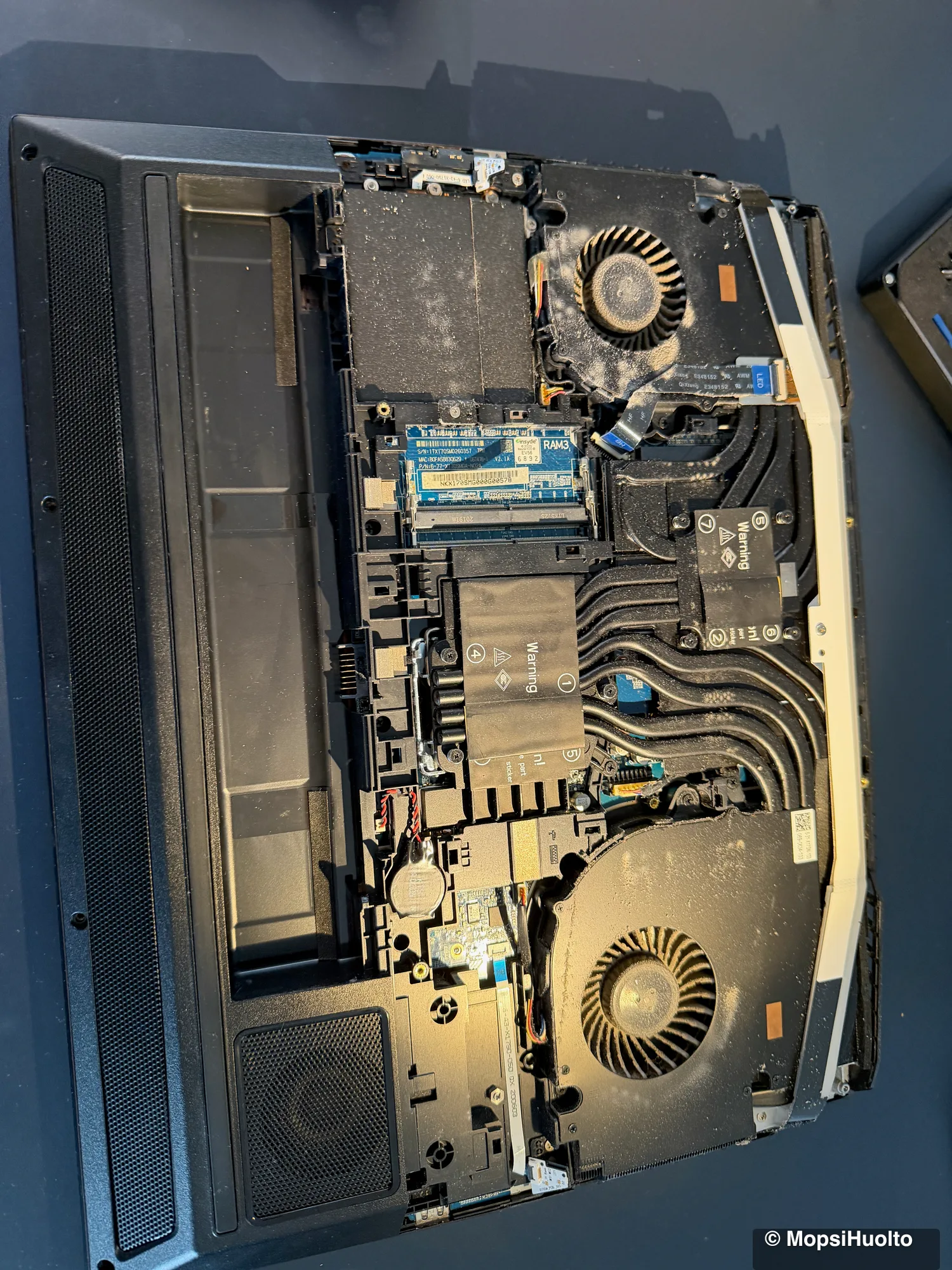
Dust in the fan and heatsink. A laptop cooler is a small blower fan pushing air through a stack of thin metal fins, with copper heat pipes carrying heat from the processor to those fins. Lint collects on the intake side of the fins, where you can't see it from the vents. Dell names lint and dust on the cooling fins as a reason fans run harder and louder. The fan spins up to push the same heat through a smaller gap.
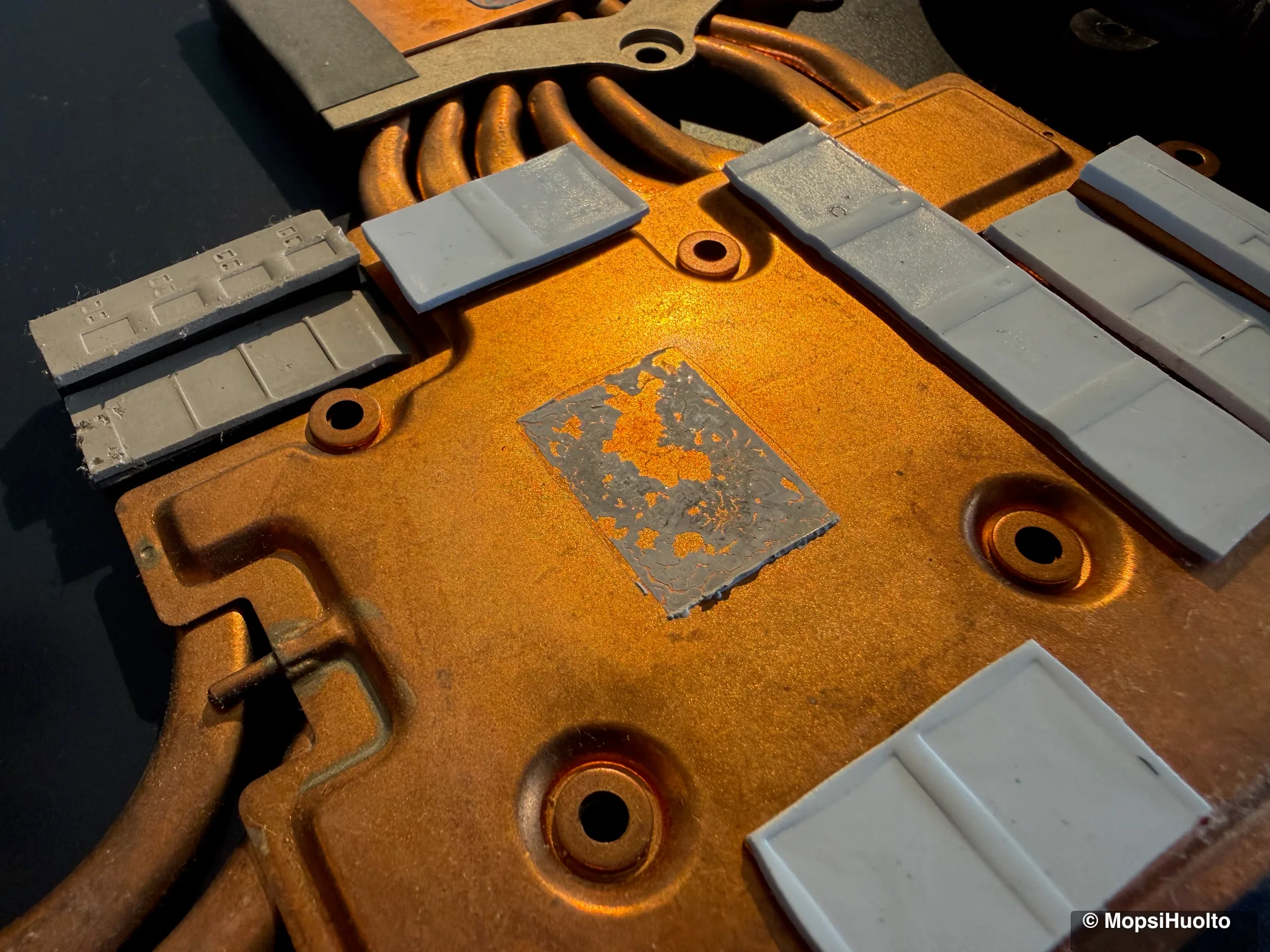
Dried thermal paste. Between the processor and the heatsink sits a thin layer of thermal paste that fills the tiny gaps between two metal surfaces. Over the years it can dry and crack, like the paste in the photo at the top of this page, and heat crosses that layer less well. Nothing you can do from the outside reaches it.
Blocked vents. Laptops breathe through vents on the bottom and the sides. Dell's fan troubleshooting guide warns that on a mattress or another soft surface the fabric can block the vents, and a laptop left there overheats quickly. A duvet, a sofa cushion and your lap all count.
Heavy work and background processes. Games, video exports, a browser with forty tabs, or an update or antivirus scan running in the background all keep the processor busy, and a busy processor makes heat. Sometimes the load is a process you never started.
Power mode. Windows lets you trade performance against battery and heat. Best performance lets the processor run harder for longer, which means more heat and more fan. On Surface devices Microsoft says the recommended setting helps limit fan speed for quieter operation.
Checks you can do at home in ten minutes
Five checks cost nothing and need no screwdriver: the surface, running processes, startup apps, the power mode and updates. Do them in this order and listen to the fan after each one.
- —Surface. Put the laptop on a hard, flat table with every vent clear — nothing underneath, nothing pressed against the side or back vents. If it gets quieter within a few minutes, you have found at least part of the cause.
- —Processes. Press Ctrl + Shift + Esc to open Task Manager, as Microsoft's performance tips describe. On the Processes tab, sort by CPU and close apps you aren't using. A process stuck at high CPU with nothing open is worth a search before you end it — it may be an update that finishes on its own.
- —Startup apps. In the same Task Manager, the Startup apps page lists what launches with Windows. Right-click anything you don't need and choose Disable.
- —Power mode. Go to Start > Settings > System > Power & battery and look at Power mode. If it says Best performance, try Balanced. For quiet office work, Best power efficiency is worth a test — the laptop will be a little slower.
- —Updates. Install pending Windows updates and your laptop maker's BIOS and driver updates. Dell, for one, lists an up-to-date BIOS and thermal software among its first steps for overheating.
Two things to rule out before you blame the hardware. Microsoft notes that in the first day after setting up a new device, background updates and syncing can keep the fan busy — give a brand-new laptop that day. And a laptop on a sunny windowsill in July is simply working harder than the same laptop in January.
Hard table, nothing running, Balanced mode — and still hot and loud? Windows laptop cleaning with fresh thermal paste from €89, on-site in Helsinki.
See laptop cleaning →Manufacturer diagnostics and fan tools
Your laptop maker's own tools are the safe way to test the fan and change how it behaves: a built-in hardware test that checks the fan, and a support app with thermal or performance modes.
Dell documents both, so it makes a good example. Its pre-boot diagnostics start when you tap F12 at the Dell logo and choose Diagnostics; in the advanced test you can select just the fans and run a thorough check. Dell's overheating article also points to the thermal profiles in Dell Optimizer or Dell Power Manager, where a quieter or cooler profile trades some speed for less fan.
Lenovo, HP, ASUS and the other brands ship their own support apps. Look for the one with your maker's name in the Start menu, or search your exact model on the maker's support site. If the fan test fails, or the fan grinds, that is the fan itself — a repair question, not a settings one.
Skip third-party apps that promise to boost the fans or clean up the PC. A fan forced to full speed makes more noise; it doesn't remove the dust that made it necessary.
What not to do with a hot laptop
Don't blow compressed air at a fan that is free to spin, don't open a laptop that is still under warranty, and don't keep working on one that shuts itself down.
- —Canned air into a spinning fan. Air blown through a vent can spin the fan far faster than it was built to turn. iFixit's Lenovo Legion cleaning guide says it straight: don't let the fan spin while cleaning, because forced rotation can damage the motor. With the panel off, the fan is held still by hand. Through a vent, it can't be.
- —A vacuum on the vents. Dell advises against it — vacuums can build up static electricity — and recommends compressed air instead. At home that means the laptop off and unplugged, and short bursts only. It clears the vent grille, not the fins behind it.
- —Opening a laptop under warranty. If the manufacturer's warranty still covers it, taking the bottom panel off yourself can void that cover, depending on the brand's terms. Go to the manufacturer first — a new laptop that overheats is their problem.
- —Ignoring shutdowns. A laptop that switches itself off under load is protecting itself. Back up your files and stop heavy work until it has been looked at.
- —Using a swollen laptop. If the case, keyboard or trackpad bulges, or you smell burning or chemicals, stop using it — Dell's overheating guide says the same. That is a battery safety issue, not a cooling one.
When cleaning with fresh thermal paste is the fix
If the laptop is on a hard surface, nothing is eating the CPU, the power mode is sensible and it is still hot and loud, the problem is inside: dust packed into the fan and fins, and paste that has dried out. Both need the bottom panel off, and that is what a laptop cleaning is.
MopsiHuolto does the Windows laptop cleaning on-site, at your home or office in Helsinki, Espoo or Vantaa. The bottom panel comes off, the fans and heatsink are cleaned, and the CPU and GPU get fresh thermal paste. Gaming laptops that cool their video memory and power circuitry through thermal pads can have the pads replaced too — that is the second tier. Diagnostics are free, you get a fixed price before the visit, and the work carries a 90-day warranty. Most laptops take one to two hours.
Same symptoms on a desktop? The fix is the same idea in a bigger box — see gaming PC cleaning.
Laptop still hot and loud after the checks? Fans and heatsink cleaned, fresh paste on CPU and GPU — from €89, free diagnostics, 90-day warranty.
Book a laptop clean →FAQ
Why is my laptop overheating and the fan so loud?+
Because the cooler is working harder to move the same heat: dust in the fan and fins, blocked vents, a heavy process, or dried thermal paste. Start with a hard surface and Task Manager. If it is still loud with nothing running, the cause is inside.
Is it normal for a laptop fan to be loud?+
Under heavy load, yes — Microsoft says the fan spins faster when the device works hard or the room is above 25 °C. Loud at an empty desktop is not normal, and grinding, whining or ticking never is.
How do I stop my laptop from overheating?+
Use it on a hard, flat surface, close apps you don't need, set the power mode to Balanced and install Windows and BIOS updates. If it still overheats, dust inside and dried paste are the usual cause, and a cleaning with fresh thermal paste fixes both.
Can I clean a laptop fan without opening it?+
Only the vent grilles. With the laptop off and unplugged, short bursts of compressed air clear the vents, but they don't reach the dust on the fins or the paste on the processor, and a long blast can over-spin the fan.
Is there a laptop cleaning service near me in Helsinki?+
MopsiHuolto comes to you: laptop cleaning is done at your home or office in Helsinki, Espoo and Vantaa, with travel included. Kerava and beyond Kehä III is €0.50/km on top. Laptop cleaning costs from €89.
Certified laptop and console repair master. Twenty years on the bench in Helsinki — tearing down PS5s, MacBooks, and gaming PCs and writing down what we learn.
+358 45 196 9558 →