To reinstall PS5 system software you need three things: Sony's reinstallation file, a USB drive formatted FAT32 or exFAT, and a console that still starts in Safe Mode. The file goes on the drive as PS5/UPDATE/PS5UPDATE.PUP. In Safe Mode you then pick Reset PS5 (Reinstall System Software).
That option deletes all data on the console. Sony's reinstall guide keeps it for the very end of troubleshooting for exactly that reason. If the PS5 shows no light at all, PS5 won't turn on is the better place to start.
Restore Default Settings resets settings only; games and saves stay. Reset PS5 and Reset PS5 (Reinstall System Software) both delete all user data, and it can't be undone. Back up first: a USB backup covers games, saves, captures and settings, but not trophies and not games on an M.2 SSD — though on our bench a reset leaves an added M.2 SSD and its games in place. The update file and the reinstallation file are different downloads that end up with the same name, PS5UPDATE.PUP. If the reinstall itself fails, or Safe Mode won't start, Sony says the console may need repair.
Which reset erases what on a PS5
Restore Default Settings resets settings and keeps your content. Reset PS5 deletes all user data. The reinstall option goes one step further: user data and the system software both go. All three are in the Safe Mode menu, per Sony's Safe Mode page.
| Option | What you lose | Where to find it |
|---|---|---|
| Restore Default Settings | Settings only — games, apps, captures, saves stay | Safe Mode |
| Reset PS5 | All user data | Safe Mode, or Settings > System > System Software > Reset Options > Reset Your Console |
| Reset PS5 (Reinstall System Software) | All user data and the system software | Safe Mode, with the file on USB |
The names make this confusing. Sony notes that the reinstall is often called a "factory" reset or a "hard" reset. It also describes Restore Default Settings as restoring the factory settings. So "factory reset" can mean the option that keeps everything or the one that erases everything. Go by the menu label, not the nickname.
On a console that still reaches the home screen, the full path to the reset is Settings > System > System Software > Reset Options > Reset Your Console. There is no undo, and deleted data can't be restored. Even the pre-installed Astro's Playroom has to be downloaded again from PlayStation Store.
Sony's order is a manual update first, then troubleshooting in Safe Mode. The reinstall comes only after those fail. In Safe Mode, the option to try is Repair Console Storage: it doesn't erase data, and it is meant for a console that doesn't start up properly. PS4 owners: the menu and the file differ on that console — see how to reinstall PS4 system software.
Before you reinstall: back up what you can
Back up to a USB drive or to PS Plus cloud storage before any option that deletes data — that is Sony's own advice. A USB backup takes your games and apps, saved data, screenshots, video clips and settings. It leaves out trophies, and games stored on extended USB storage or on an M.2 SSD.
- —USB backup: Settings > System > System Software > Back Up and Restore > Back Up Your PS5, on a drive formatted FAT32 or exFAT. A drive you use as extended storage for games is formatted differently and can't hold a backup. Sony's backup page has every step.
- —Cloud: PS Plus cloud storage holds up to 100 GB of PS5 saved data and needs a PlayStation Plus membership. It can sync saves by itself when you close a game or put the console in rest mode.
The USB backup lives in the Settings menu, so making one takes a console that reaches the home screen. If yours doesn't, anything never backed up or synced is still only on the console. Keep that in mind before you pick an option that deletes it.
Restoring has its own rules. A restore wipes the console first. The system software has to be the same version as at backup time, or newer. Console Sharing and Offline Play are switched off afterwards; turn them back on, or you can lose access to your subscriptions and content.
Preparing the USB drive and the reinstall file
You need a PC or Mac with internet access, a USB drive formatted FAT32 or exFAT with about 1.2 GB free, and a controller with a USB cable. On the computer, make a folder called PS5 on the drive and a folder called UPDATE inside it. Into UPDATE goes the reinstallation file from Sony's system software page, saved under the name PS5UPDATE.PUP.
That page offers two files, and they are easy to mix up. The update file is for Update System Software > Update from USB Storage Device and needs about 1.1 GB free. The reinstallation file is for Reset PS5 (Reinstall System Software). On the drive both carry the name PS5UPDATE.PUP, so the name tells you nothing — download the one you need and nothing else.
File not found? Sony's Safe Mode update page gives the checks. The drive has to be FAT32 or exFAT. The folder and file names have to be in capital letters, typed as plain single-byte characters. Use only the official file from Sony: anything else can void the warranty and affect your access to its repair service.
Running the reinstall, step by step
With the drive ready and your data backed up, the reinstall itself takes five steps. Two rules first: no installing just before or just after a power cut, and no switching off halfway, because an interrupted installation can damage the console.
- —Turn the PS5 off: press and hold the power button until it beeps.
- —Plug in the USB drive with the reinstallation file.
- —Hold the power button again and let go on the second beep — that starts Safe Mode.
- —Connect the controller with a USB cable and press the PS button.
- —Select Reset PS5 (Reinstall System Software). It is the last item in the Safe Mode menu.
When the console starts again, it is in its original state. Download Astro's Playroom again if you want it, restore your backup, and switch Console Sharing and Offline Play back on.
Error codes around a PS5 update, reinstall or start-up
Each of these codes points at one of five problems: a USB drive the console can't read, system software that is too old, an update that failed, a start-up that didn't finish, or system or app data the console can't read. Sony's fix for each:
| Code | What Sony says | What to do |
|---|---|---|
| CE‑109737‑7 | USB drive not recognised | Reseat it, no hub, another port, another drive |
| SU‑101193‑5 | Update to the latest system software | Restart, update; try the USB route |
| CE‑107520‑5 | Latest system software needed | Update from USB via a PC, or a disc with newer system software |
| CE‑113338‑9 | Error while updating | Wait 48 hours, then try again |
| SU‑101337‑5 | Console may not have started properly | Unplug for 5 minutes; then the reinstall |
| CE‑108262‑9 | Error reading system or app data | Rebuild Database; reset only if it persists |
For SU-101337-5, Sony's error page adds a last line: if the console still won't start after the reinstall, or Safe Mode can't be started at all, it may need repair. For CE-108262-9, the reset meant is Reset Your Console, which erases console storage — back up first.
If Safe Mode itself won't open, the cable swaps and the 20-minute unplug come first; they are in our Safe Mode loop guide.
Games on an M.2 SSD: what a reset and a backup do to them
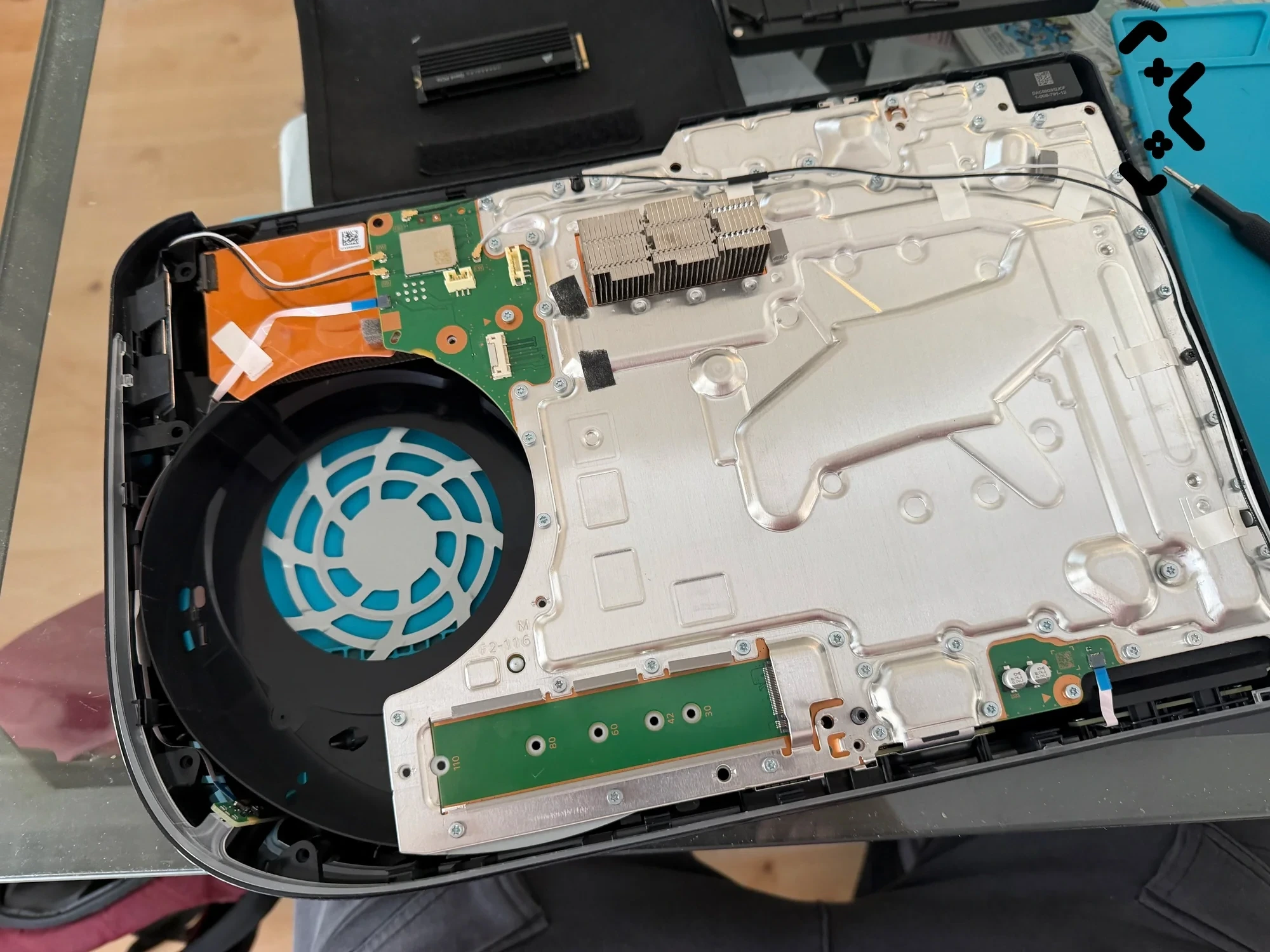
Sony's USB backup doesn't include games and apps on an M.2 SSD. On our bench, though, Reset PS5 and the system software reinstall leave the additional M.2 SSD and the games on it as they were. Sony's own reset guides don't say either way.
- —When you restore a console from backup, Sony says you can keep using the M.2 SSD as it is by fitting it in the console you restore.
- —If you're handing the console on and want to keep the M.2 SSD, Sony's advice is to take it out first.
- —Saved data is on the backup list without the M.2 exception. Get the saves off the console first, then reset.
When the PS5 won't reinstall or won't reach Safe Mode
A failed reinstall, or a Safe Mode that won't open after the cable swaps and the long unplug, is where Sony stops too. Its next step is to contact PlayStation Support and arrange a repair. Everything before that costs nothing, so it's worth doing first.
Out of warranty, or not sure what's wrong? Diagnosing a PS5 that won't start is free, and we reinstall the system software. We also fit an additional M.2 SSD if you want more room for games.
Saves are the urgent part. As long as the console still gets to Safe Mode or its menu, we can copy them to USB or the cloud before anything is wiped. A drive that has died takes them with it.
PS5 won't start at all, or still fails after the reinstall? Diagnostics are free, and you get the price after diagnostics.
Book free diagnostics →FAQ
Does reinstalling PS5 system software delete everything?+
Everything on the console's own storage, yes: Sony says it deletes all data on the console. On our bench, an additional M.2 SSD and the games on it are left as they were. Back up saves to USB or PS Plus cloud storage first, while the console still lets you.
What's the difference between Reset PS5 and Reset PS5 (Reinstall System Software)?+
Both delete all user data. Reset PS5 returns the console to its original state. The reinstall option also removes the system software, which you then install again from the USB drive.
Do I need PS Plus to keep my saves?+
Not for a USB backup — that only needs a FAT32 or exFAT drive and a console that reaches the home screen. Cloud storage for saves needs a PlayStation Plus membership.
Are trophies included in a PS5 backup?+
No. Sony's backup page says trophies aren't included in the backup data.
Certified laptop and console repair technician. Twenty years on the bench in Helsinki — tearing down PS5s, MacBooks, and gaming PCs and writing down what we learn.
+358 45 196 9558 →