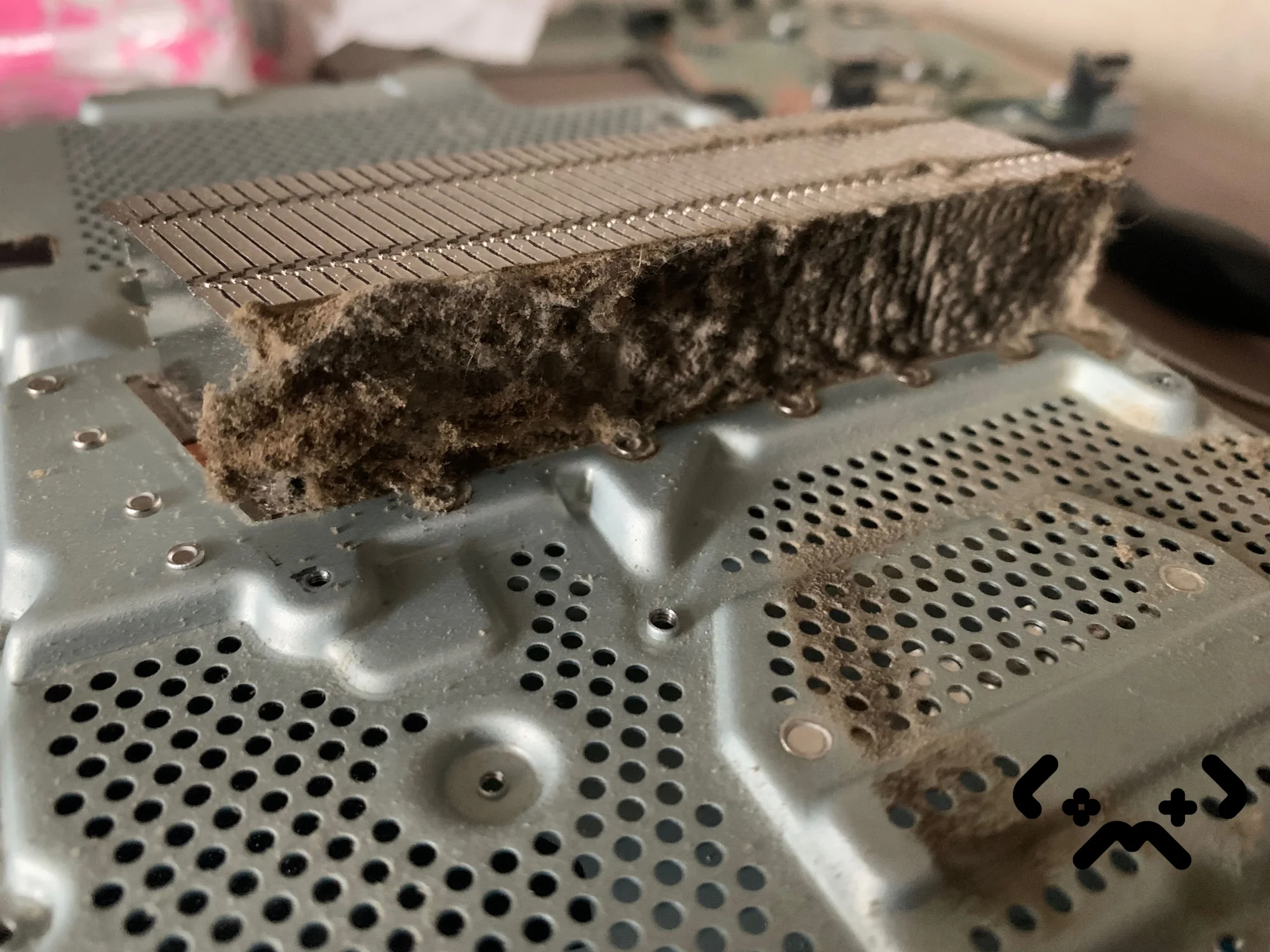
A PS4 stuck in safe mode is usually not dead. Safe mode is a recovery menu with eight options, and most loops end at the first or second step: a full power-off with the cable out for 20 minutes, then Rebuild Database. Only the two Initialize options wipe your data, so they go last. This guide is PS4 only — the PS5 menu is different, see our PS5 safe mode guide.
Power it off fully and leave the power cable out for 20 minutes before anything else. Then try Rebuild Database — it rescans the drive, it does not wipe it. A loop that keeps asking for the controller is often the USB cable, not the console. Initialize PS4 and the reinstall option erase everything: back up first, use them last. Mid-game shutdowns and a blinking red light mean heat, and no menu option fixes heat.
PS4 shutting down mid-game or roaring before it does? PS4 clean in Helsinki from €79 — dust out, fresh thermal paste, 90-day warranty.
Book a PS4 clean →Why a PS4 ends up in safe mode
A PS4 opens safe mode for one of four reasons: the last shutdown was not clean, a system software update was interrupted, the database on the drive is damaged, or the hard drive itself is failing. Heat comes in through the first door — a console that cuts out mid-game has not shut down cleanly.
Safe mode is not the fault. It is a stripped-down menu that runs with only the basic functions, so you can repair the software without loading the full system. Each option answers a different question, which is why the order you try them in matters more than which one sounds strongest.
How to start a PS4 in safe mode
Turn the console off, hold the power button until the second beep, then connect the controller with a USB cable and press the PS button. Those are Sony's official steps, in full:
- —Turn the PS4 off by holding the power button for three seconds. The power light blinks briefly and goes out.
- —With the console off, press and hold the power button again. Release it after the second beep. If you let go at the first beep, the PS4 simply starts normally.
- —Connect the controller to the console with a USB cable and press the PS button.
If the screen stays black at this point, check the HDMI cable before blaming the console. Sony's safe mode troubleshooting page lists that first, and suggests swapping the USB, HDMI and power cables one at a time, starting safe mode again after each swap.
PS4 safe mode options, in the order to try them
Go down the menu from the top: Restart, Change Resolution if the picture is the problem, Update System Software, Restore Default Settings, Rebuild Database, and only then Initialize PS4. Options 1–5 keep your games and saves; options 6 and 7 erase everything on the console.
| # | Option | What it does | Your data |
|---|---|---|---|
| 1 | Restart System | Leaves safe mode and starts the PS4 normally | Kept |
| 2 | Change Resolution | Restarts at 480p — for a blank screen after a TV or cable change | Kept |
| 3 | Update System Software | Installs the latest system software from the internet, a USB drive or a disc | Kept |
| 4 | Restore Default Settings | Returns system settings to factory defaults; Sony says content on storage is not deleted | Settings reset, games and saves kept |
| 5 | Rebuild Database | Scans the drive and builds a new database of everything on it | Kept |
| 6 | Initialize PS4 | Deletes all user data and returns the console to its original state | Everything erased |
| 7 | Initialize PS4 (Reinstall System Software) | Deletes all user data and removes the system software; needs a reinstallation file on USB | Everything erased |
| 8 | Set HDCP Mode (PS4 Pro only) | For 4K TVs without HDCP 2.2 — not a fix for a loop | Kept |
Restart first, because a one-off bad shutdown often clears on its own. Change Resolution only matters when the console runs but the TV shows nothing. Update System Software is the next step when the loop started around an update: download the file on a computer and put it on a USB stick formatted FAT32 or exFAT, in a folder PS4, a subfolder UPDATE, as PS4UPDATE.PUP — uppercase, exactly as Sony's update page spells it.
Restore Default Settings resets how the console is configured, not what is installed. Rebuild Database is the one that fixes most loops caused by a damaged index: it rescans the drive and rebuilds the list of what is on it. On a full drive it takes a while, so leave it alone and do not pull the power while it runs.
Initialize PS4 and Initialize PS4 (Reinstall System Software) delete every game, save, user and setting on the console. Sony calls the reinstall option the last step in troubleshooting. If the console still reaches the home screen now and then, copy your saves to a USB drive or to PS Plus cloud storage first. If it never gets past safe mode, whatever was already in the cloud is what you keep.
Option 7 needs a different file from the regular update — the full reinstallation file, which Sony links separately. It goes into the same PS4/UPDATE folder under the same PS4UPDATE.PUP name. Sony's reinstall guide notes that if the console does not see the file, the folder or file name is wrong.
USB cable and controller loop
If the PS4 keeps asking you to connect the controller with a USB cable and nothing happens when you do, suspect the cable before the console. Plenty of micro-USB cables carry power only, not data — the controller charges, but safe mode never hears the PS button.
- —Use the cable that came with the PS4, or one you know syncs a phone or a camera. Charging is not proof of data.
- —Plug into a USB port on the console itself, not a hub or an extension.
- —Press the PS button after the cable is in, not before.
- —Check the controller's own micro-USB port. A worn socket that only makes contact at an angle behaves exactly like a bad cable.
The other loop is the one where the menu works, you pick Restart, and the PS4 comes back to safe mode anyway. Sony's sequence for that: hold the power button until the console is fully off, wait for the power light to stop blinking, pull the power cable and leave it for 20 minutes, reconnect and start normally. If it still opens safe mode, go to Rebuild Database.
Hard drive failure: the signs
If Rebuild Database fails or the loop is back within days, or the console shows error CE-34335-8, look at the hard drive. Sony's own description of CE-34335-8 is "No Hard Disk Drive (HDD) detected".
- —CE-34335-8, or a message that the console cannot start and asks for a USB drive with the reinstallation file.
- —Rebuild Database stalls, or finishes and the next start is safe mode again.
- —Initialize or the reinstall stops part-way with an error.
- —Before the loop began, loading got slower and slower, or the drive made clicking sounds.
The PS4 hard drive is designed to be swapped by the owner on every model — original, Slim and Pro — and Sony's HDD guide walks through it. After the swap the system software has to be reinstalled from USB with the full reinstallation file. What was on the old drive is gone unless it was backed up or in the cloud.
Overheating: when safe mode is only the symptom
If the PS4 shuts down during games, the fan roars before it does, or the power light blinks red, the root problem is heat — and no safe mode option removes heat. Sony's power indicator guide says a blinking red light on a PS4 means it is overheating.
Each of those shutdowns is abnormal, so safe mode can greet you on the next start. Rebuilding the database or initializing the console will not change anything, because the next long session ends the same way. Why an older PS4 runs hot and how often it needs opening up is its own topic — we covered it in how often you need to clean a PS4.
Time for a technician
Hand the console over when you have done the 20-minute power cycle, swapped the cable and run Rebuild Database, and it still loops — or as soon as you see a hardware sign: the HDD error, a blinking red light, shutdowns mid-game, or no power at all.
The most useful moment to ask is before you initialize a console you cannot back up. Diagnostics at MopsiHuolto are free, we come to your home or office in Helsinki, Espoo and Vantaa, and repairs and cleaning carry a 90-day warranty.
PS4 still looping after the rebuild? Diagnostics are free — tell us what the light and the screen do, and we will tell you what it needs.
Ask for a diagnosis →FAQ
How do I get my PS4 out of a safe mode loop?+
Turn it fully off with the power button, wait for the light to stop blinking, unplug the power cable for 20 minutes, then start it normally. If it opens safe mode again, run Rebuild Database. If the menu does not react to the controller, swap the USB cable for one that carries data.
Why won't my PS4 turn on at all?+
No light at all points at power: try another socket and another power cable, which is also Sony's advice. A light but no picture points at the HDMI cable or the resolution — option 2 in safe mode. A blinking red light means overheating, and that needs the console opened and cleaned, not reset.
Does Rebuild Database delete my games or saves?+
No. Rebuild Database scans the drive and builds a new index of what is already on it; the options that delete user data are the two Initialize ones. Do not cut the power while it runs.
What is the difference between Initialize PS4 and Reinstall System Software?+
Both erase all user data. Initialize PS4 keeps the system software and returns the console to its out-of-the-box state. Initialize PS4 (Reinstall System Software) also removes the system software, so you need the full reinstallation file on a USB drive before you start.
Certified laptop and console repair master. Twenty years on the bench in Helsinki — tearing down PS5s, MacBooks, and gaming PCs and writing down what we learn.
+358 45 196 9558 →