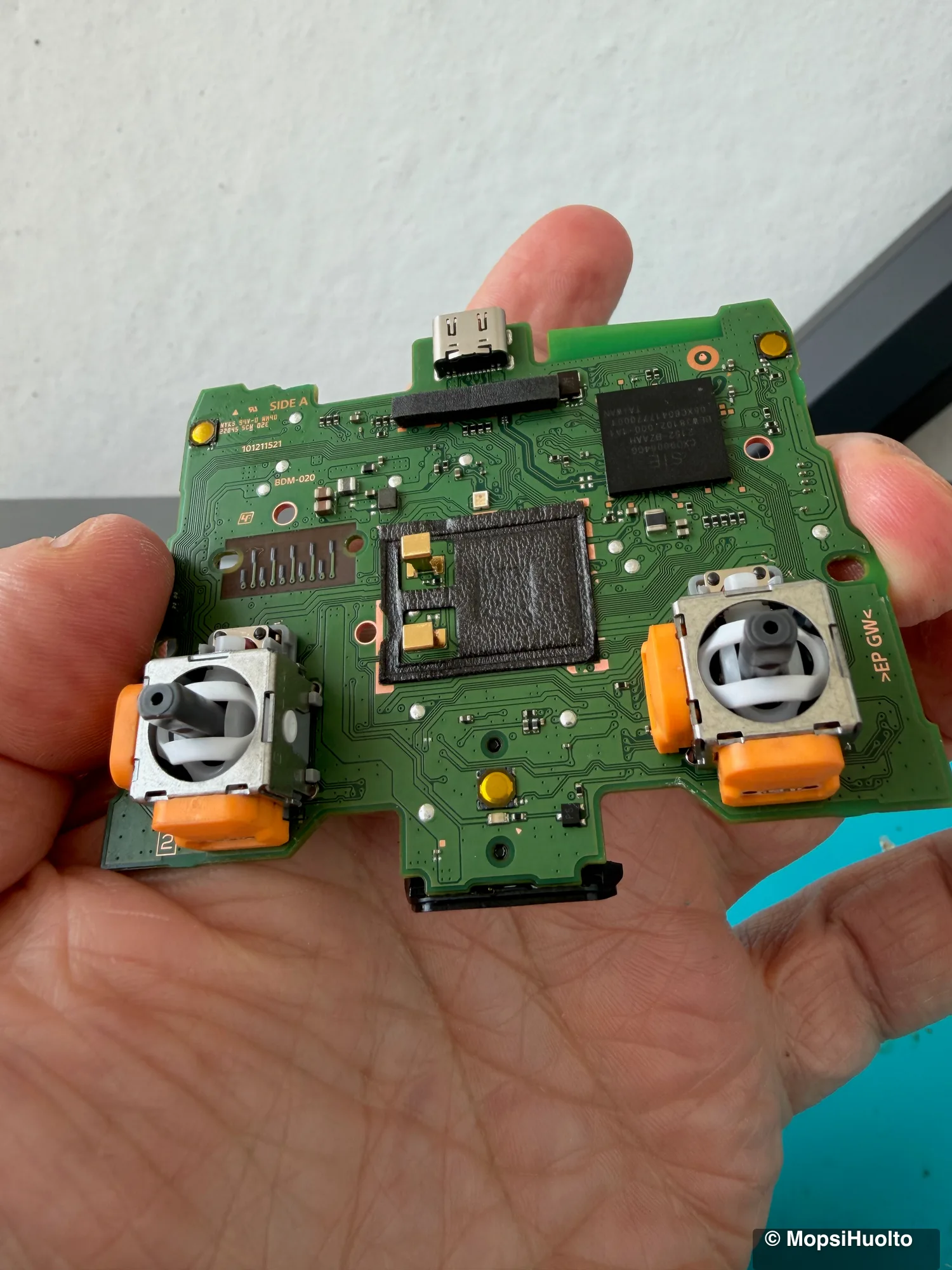
The PS5 itself does not calibrate the sticks of a standard DualSense. Sony's support pages for the controller cover pairing, device software updates and a hardware reset — and no calibration menu. Real PS5 controller calibration happens on a computer: plug the controller in by USB, open a WebHID tool in Chrome or Edge, and record the stick's centre and range again. Our free browser tool does exactly that. Below: what the console offers, how to reset the controller, how to calibrate on a PC step by step, and how to tell when the stick is simply worn out.
A standard DualSense has no stick calibration menu on the PS5; Sony documents none. The console can update the controller's software, and a pin in the hole on the back resets it — neither recentres a stick. Calibration runs on a computer: USB cable, Chrome or Edge, a WebHID tool. It corrects an off-centre rest point or a short range; it cannot repair a worn potentiometer. If drift comes back within hours of a saved calibration, the stick module needs replacing.
Free stick calibration in your browser — DualSense, DualSense Edge and DualShock 4 over USB, in Chrome or Edge, nothing to install.
Open the calibration tool →PS5 controller calibration on the console: what exists
For a standard DualSense, nothing. PlayStation's support pages for the controller explain pairing, updating its device software and resetting it, and none of them describes a stick calibration routine. Sony's troubleshooting page for the DualSense doesn't mention calibration at all.
The DualSense Edge is what people mix this up with. Under Settings → Accessories → DualSense Edge Wireless Controller → Custom Profiles, each profile has a Stick Sensitivity/Deadzone screen with six sensitivity curves and a dead zone setting — Sony's Edge setup guide walks through it. That changes how the stick's input is interpreted in games. It doesn't record where the stick's centre is, so it isn't calibration in the sense this article means.
So if you have a regular DualSense, don't spend an evening hunting for a calibration item in the PS5 menus. What the console does offer is two maintenance steps: a software update and a reset.
Updating the controller software
Before you calibrate anything, make sure the controller runs current device software — it's the one piece of controller maintenance the PS5 handles itself. Updates normally arrive together with PS5 system updates. To check by hand, go to Settings → Accessories → Controller (General) → DualSense Wireless Controller Device Software, as Sony describes it, and follow the on-screen steps.
Without a console, Sony's PlayStation Accessories app does the same job on a Windows 10 (64-bit) or Windows 11 PC, over USB or Bluetooth. An update is not a drift fix, and Sony doesn't present it as one. It simply takes outdated firmware off the list of suspects before you change anything else.
Resetting the controller: the pinhole on the back
The reset button is a hard restart for the controller, pressed with a pin. Sony lists it as a troubleshooting step, not as calibration — nothing on its support page says a reset touches the sticks. Here is Sony's procedure:
- —Unplug the USB cable from the controller.
- —Find the small hole next to the Sony logo on the back of the controller.
- —Push in a pin or an unfolded paper clip and hold the button for at least five seconds.
- —Connect the controller to the PS5 with a USB cable and press the PS button to pair it again.
It's the right move when the controller disconnects, won't pair, or behaves oddly after an update. If the drift is mechanical, it will still be there after the reset.
Calibrating a PS5 controller on a PC
This is where calibration actually happens: connect the DualSense to a computer with a USB cable, open a WebHID calibration tool in Chrome or Edge, record a new centre and range, and save them to the controller. Our tool runs on DualShock Tools, an open-source engine under the MIT licence, and supports the DualShock 4, DualSense, DualSense Edge and PS VR2 controllers.
- —A PC or Mac. Phones and tablets are not supported.
- —Chrome, Edge or Opera. Safari has no WebHID; Firefox works only with a WebHID extension.
- —A USB cable that carries data, not just charge. Bluetooth won't do — the tool talks to the controller over USB only.
The sequence, start to finish:
- —Plug the controller in, open the tool, press Connect and pick the controller from the browser's list.
- —Look before you change anything. The Joystick Info panel shows live LX, LY, RX and RY values and a circularity check. With your thumbs off, a healthy stick sits at or very near zero.
- —Put the controller on a flat surface. Choose Calibrate stick center → four-step calibration: sticks untouched, then two or three full circles, then released, then confirm.
- —Choose Calibrate stick range and slowly roll each stick around its outer edge three or four times, diagonals included.
- —Check the result in the tool or in a game. Only then press Save changes permanently — until you do, the new values are lost when the controller restarts.
Two warnings the tool itself gives. On a worn stick, calibration may help for a while and may also make things worse. And a freshly fitted stick module usually needs calibrating, because its centre and range differ from the old one's.
Dead zones hide drift, they don't fix it
A dead zone is how far a stick has to tilt before the game counts it as input, so raising it makes a small drift vanish from the screen without changing what the stick reports. Sony's own example: with a 10% dead zone, you need to tilt past 10% before the game registers anything.
Many games have a dead zone slider in their controls menu, and the DualSense Edge sets one per profile. As a stopgap that's fine. The cost, as iFixit points out in its write-up on why DualSense sticks drift, is precision: every step up takes away a band of fine aiming and slow movement, and a stick that's wearing out keeps asking for more.
Calibration and dead zones solve different problems. Calibration moves the centre back to where the stick actually rests. A dead zone ignores everything around it. If a calibration holds, you don't need a bigger dead zone.
When PS5 controller calibration can't fix drift
Calibration can't fix a worn stick. Each DualSense stick reads its position with two potentiometers — a wiper sliding over a carbon track — and once that track wears, the reading turns noisy and wanders, and no stored centre value can follow it. iFixit puts it plainly: calibration helps with a consistent offset in one direction, not with looseness or a worn spot on a potentiometer.
- —Drift returns minutes or hours after a saved calibration.
- —The camera turns or the character walks on its own — more than a slight creep.
- —The stick wobbles, has play, or doesn't spring cleanly back to the centre.
- —Some directions don't register, or the value jumps when you move the stick slowly.
- —Grinding or clicking when the stick moves.
Any of these means the part is the problem, not its settings. The fix is a new stick module soldered onto the controller's board — iFixit's own replacement guide rates the job as needing intermediate soldering skills. After the swap, the new stick gets calibrated with the same tool. Every other drift fix, cleaning included, is in our guide to DualSense stick drift.
Stick worn out? DualSense stick replacement in Helsinki from €30 — fixed price, Hall Effect / TMR module, 90-day warranty. Bring it in or post it.
Book a stick replacement →FAQ
Can you calibrate a PS5 controller on the PS5 itself?+
Not a standard DualSense. The PS5 lets you update the controller's software, and the pinhole reset restarts it, but there is no stick calibration routine. The DualSense Edge adds per-profile sensitivity and dead zone settings, which change how input is read rather than recalibrating the stick.
Does resetting a PS5 controller fix stick drift?+
No. The reset button restarts the controller, and you then pair it again with a USB cable and the PS button. It's the right step for connection trouble. Drift from a worn stick survives it.
Can I calibrate a DualSense over Bluetooth or on my phone?+
Not with a WebHID tool like ours. It needs a USB cable and a desktop browser — Chrome, Edge or Opera on a PC or Mac. Phones, tablets and Safari are not supported; Firefox only with a WebHID extension.
Is browser calibration safe for the controller?+
It writes new centre and range values to the controller, so work carefully: test before you save, because unsaved changes disappear when the controller restarts. On a worn stick, calibration can make behaviour worse — which is the sign the stick needs replacing, not another calibration.
Do new sticks need calibrating?+
Usually, yes. A replacement module may rest slightly off centre and reach a different range than the original, so both are recorded again after fitting. For the DualSense Edge, the tool also has steps for releasing and re-locking its swappable stick modules.
Certified laptop and console repair master. Twenty years on the bench in Helsinki — tearing down PS5s, MacBooks, and gaming PCs and writing down what we learn.
+358 45 196 9558 →